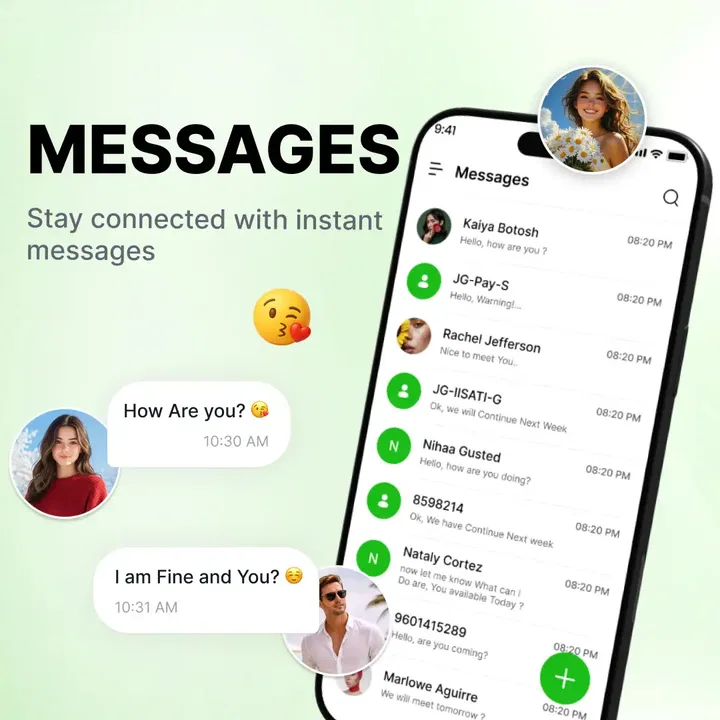
Messages Home: SMS Texting App
- 4.0
- Rating
- 100.00K
- Installs
- Free
- Price

 Analysis by App-foxy
If you want a straightforward way to handle ordinary text messages, Messages Home: SMS Texting App is aimed at that familiar task rather than trying to become a complete social network. I approached it as a first-time user would: looking for a quick route from opening the app to finding a conversation and sending a message. Its focus is communication, with SMS at the center and chat-oriented touches intended to make everyday texting easier to reach.
The app is free, carries an Everyone age rating, and comes from Shivraj Hubs. It has reached over 100 thousand installs and holds a 4.0 average from around 300 ratings, which suggests that it has found an audience without giving me the impression that it is trying to replace every messaging service on a phone. The current release is version 1.5 and requires Android 10 or later, so checking your Android version before installing is the sensible first step.
What to expect when you open Messages Home
The most useful way to think about this app is as a dedicated SMS tool with a home screen built around access. The short store label, “Messages Home,” points toward that purpose: getting to messages without digging through a crowded collection of communication tools. If your needs are sending and reading regular texts, the basic concept is easy to understand.
You May Also Like

 Blood Strike: 2.5 Anniversary
Blood Strike’s Loadouts Turn Every Drop Into a Tactical Gamble
A close look at Blood Strike’s custom loadouts: how fast access to signature weapons reshapes its battle royale rhythm, rewards preparation, and narrows the gap between fights.

 Pandora - Music & Podcasts
Pandora’s Music Is Easy to Start, but Harder to Recover
Pandora’s strength is its low-effort path from a seed to a station. Its weak spot is how much confidence it asks you to place in connection, setup, and quiet recovery.

 8 Ball Pool
 Is Built on Rivalries, Rematches, and Routine
A close look at the rivalries, rematches, shared routines, and unanswered safety questions that turn a quick pool match into a persistent mobile community.

 Samsung Music
’s Quiet Strength Is Playing What You Already Own
Its reach comes less from spectacle than from dependable access to a personal library. That simplicity is both the app’s strongest retention engine and its ceiling.

 AccuWeather: Weather Radar
AccuWeather Review: A Quick, Clear Forecast for Everyday Decisions
For everyday plans, the best forecast is the one you can understand quickly. AccuWeather makes rain timing, radar, and local conditions easy to act on, with a few trade-offs.

 Hill Climb Racing
Why Hill Climb Racing Still Turns Crashes Into One More Run
A tiny car, a bumpy hill and one more upgrade: Hill Climb Racing keeps resurfacing because its simple chaos makes every near-miss feel personal.
More From Our News Desk
View All News


I would not approach it expecting the same experience as a large internet messenger. SMS and chat apps solve different problems. A service such as WhatsApp or Signal normally depends on accounts, contacts using the same service, and an internet connection. An SMS application is more suitable when the important thing is reaching a phone number through the mobile network, especially when the other person does not use the same chat platform.
That distinction matters before you make it your daily default. Messages Home makes sense for someone who wants a focused texting destination, a simpler route to conversations, or an alternative to a manufacturer’s preinstalled messaging app. It is less compelling if your communication is mostly group chats, media sharing, voice calls, or communities that already live inside another platform.
My first practical recommendation is to begin with one low-pressure conversation rather than immediately reorganizing every message on your phone. Open an existing thread, check that the recipient is the person you expect, and send a short test such as a normal greeting. This gives you a meaningful result quickly and lets you judge the layout before committing to a broader change in how you text.
Who will feel at home here
This app is a reasonable fit for people who prefer a smaller communication tool. It may also suit a family member who finds feature-heavy messaging services distracting, or someone who wants a visible starting point for texting instead of a screen filled with unrelated shortcuts. The Everyone rating also makes its intended audience broad, although the usefulness still depends on whether SMS is the kind of messaging you actually do.
I see a particularly practical use for people who keep separate purposes on their phone. A work number, a personal number, and appointment reminders can all create a long list of threads. A dedicated SMS home can help you treat text messages as their own task: open the app, find the conversation, respond, and leave. That simple boundary can be more valuable than a long feature list.
On the other hand, I would skip it if you need a mature cross-platform chat ecosystem. If nearly everyone you contact uses an internet-based messenger, installing another SMS app may add a second inbox rather than remove friction. It is also not the obvious choice for someone who expects advanced collaboration, extensive media tools, or a large community around the application.
Setting it up without making the process harder
Because this is a communication app, the first setup should be approached carefully rather than rushed. Install it only on a compatible Android device, open it, and read each system prompt before continuing. Messaging applications commonly need access to the phone’s communication functions in order to show conversations and send texts; I would approve only what matches the action I am trying to perform and avoid tapping through prompts automatically.
If the app asks whether it should become the default SMS application, take a moment to decide. Making it the default can create a smoother daily workflow because one app becomes the place where incoming and outgoing texts are handled. But it also changes which application opens when you use messaging actions elsewhere on the phone. If you are only testing Messages Home, keeping your existing arrangement until you are comfortable is the safer approach.
There is a useful difference between testing the interface and changing your whole messaging routine. A first-time user can explore the conversation list and compose screen before deciding whether the app deserves a permanent role. I would look for familiar contacts, open a recent thread, and confirm that the compose action is easy to find. If any of those steps feels unclear, there is no reason to make the app your default immediately.
Your phone’s existing SMS history is another reason to move gradually. When changing messaging applications, I prefer to verify what conversations are visible before relying on the new app for something important. Start with a recent, non-urgent thread. That small check can reveal whether the app fits your current phone setup without turning a simple trial into a stressful migration.
For a parent or less technical user, I would do the first setup together. Explain that the app is for ordinary texting, identify the compose control, and send one harmless test message to a trusted contact. This is more reassuring than presenting the app as a complicated communications system. The goal is not to configure every possible option; it is to establish one dependable path to a reply.
The first successful action: send one useful text
The fastest way to understand the app is to complete a real but simple task. From the main message area, choose a conversation you recognize or begin a new one, select the intended phone number, write a short message, and check the recipient before sending. I recommend using a normal sentence rather than an empty test because it confirms that the app fits the way you actually communicate.
After sending, stay in the conversation long enough to see how the thread presents the outgoing message. Notice where the reply will appear and whether returning to the main screen brings you back to the conversation list as you expect. These small navigation details matter more in daily use than a polished first impression. If you can open, send, return, and reopen without hesitation, the app has already passed its most important test.
A realistic example would be arranging a pickup. I might open a saved conversation, write “I’ll be there after work,” review the contact name, and send it. Later, I can return to the same thread instead of creating a new message from scratch. That scenario tests the core loop—finding a person, writing clearly, sending, and locating the exchange again—without requiring advanced knowledge.
Another useful test is an incoming reply. Ask a trusted contact to answer when convenient, then check how the new message appears in the conversation list and inside the thread. This helps you learn where unread activity is shown and whether the app’s home layout makes a busy inbox easier or harder to scan. I would do this before depending on it for time-sensitive messages.
Keep an eye on the difference between sending and receiving. The app provides the interface for SMS, but delivery still depends on your phone service and the recipient’s number. If a message does not arrive, do not assume the app alone is responsible. Check the selected number, your mobile connection, and the conversation itself before repeating the message and accidentally sending it twice.
Small habits that make the app less confusing
The first non-obvious habit I recommend is checking the recipient every time you start a new thread, especially when contacts have similar names. A simple texting interface can make sending feel effortless, which is helpful until speed causes an avoidable mistake. For important information, I would verify both the contact label and the visible phone number before pressing send.
A second useful habit is treating the conversation list as a working queue. After replying, return to the main screen and notice which threads remain active. If you regularly text several people about appointments, deliveries, or family plans, this view can help you decide what still needs attention. I would avoid creating a new thread for every reply when an existing conversation is already available, because keeping one exchange together makes later searching and context easier.
A third trade-off concerns simplicity. A focused SMS app can reduce distractions, but it may also feel limited beside a full-featured chat service. Before blaming the app for not behaving like an internet messenger, decide which channel your contact expects. If the person is waiting for a reply in another service, Messages Home will not solve that communication gap simply because it is installed.
I also suggest testing the app at the times you normally text rather than only during setup. Try opening it from a quiet home screen, then repeat the action when you are in a hurry. The value of a home-focused messaging tool is measured by how quickly it gets you to the right conversation under ordinary pressure. If the route remains clear, that is a stronger sign of fit than a brief installation session.
Where first-time users may hesitate
The biggest point of confusion is likely to be the boundary between SMS and chat. The word “chat” can make an app sound like an internet messaging service, but ordinary texting still follows the rules of your mobile service. You should not assume that every feature associated with modern chat platforms is available or that a recipient needs the same app installed. For basic texts, the recipient generally interacts through their regular phone messaging setup.
Another possible hesitation is deciding whether to replace the phone’s current messaging application. I would not make that decision based only on the app’s name or home screen. Use it for a few ordinary conversations first. If you find the route to threads clearer and the compose flow comfortable, switching may be worthwhile. If your current app already handles your messages well, the benefit may be too small to justify changing your routine.
Version compatibility should also be part of the decision. The app requires Android 10 or newer, so an older phone will not be a suitable home for it. On a compatible device, I would still keep the first test modest and confirm that the app behaves correctly with your existing contacts and mobile service before using it for urgent communication.
There is also a human factor: changing the app used for texts can make familiar actions feel unfamiliar for a few days. Even a clean layout may place controls somewhere different from the application you already know. I would judge it after completing several real conversations, not after one glance. If the new path consistently saves effort, the adjustment is worthwhile; if it makes routine replies slower, familiarity with your current app may be the better advantage.
How it compares with the usual alternatives
Compared with a phone manufacturer’s standard SMS app, Messages Home is most interesting when its home-oriented approach feels more direct on your device. The standard app may already be deeply integrated and familiar, so the alternative needs to make finding and handling conversations noticeably easier for you. I would choose based on daily movement through the app, not on the fact that it is a separate download.
Compared with internet messengers, its strength is the ordinary phone-number route. You do not need to persuade every contact to join a new service just to send a basic text. That can be important for short-lived interactions, service reminders, or people who use different devices and platforms. The trade-off is that you should not expect the same community features, account-based continuity, or rich chat environment that those services are built around.
Compared with a general communication hub, a dedicated SMS tool can be calmer. It is easier to understand what the app is for when the main task is texting. But a narrower purpose is not automatically better for everyone. If you want one place for calls, video, group discussions, files, and social updates, another category of app will likely fit your habits more naturally.
My practical rule is simple: choose Messages Home when SMS is central and access is the problem; choose an internet messenger when shared chat features are central; keep your existing app when it already gives you a fast, reliable routine. That makes the decision less about chasing a replacement and more about matching the tool to the conversations you actually have.
Who should continue, and who should stop here
I would continue with the app if you want a free, focused way to reach text conversations, your device runs Android 10 or later, and the first test message feels easy to send and find again. It is especially reasonable for someone who values a simple starting point and does not want to depend on every contact using the same online service.
I would stop after testing if you mainly communicate through established chat platforms, need sophisticated group collaboration, or find that your existing SMS application already gives you quicker access. There is no benefit in maintaining a second messaging path if it divides attention or makes you wonder where a reply will appear.
For people who handle sensitive or important conversations, I would also make the channel choice deliberately. Ordinary SMS has its own limitations compared with services designed around private, account-based messaging. Messages Home can make texting more accessible, but a more specialized service may be preferable when privacy tools or rich communication controls matter more than simplicity.
The next step after the first message
Once the basic send-and-reply test works, use the app for a small part of your normal week. Keep one family conversation, one practical conversation, or one appointment-related thread inside it and observe whether the home view helps you return to the right exchange. This gradual approach gives you useful evidence without forcing an all-at-once switch.
After that trial, decide whether to make it your regular SMS destination. If you do, tell the people who share your phone that you have changed the app you use, not the number they should contact. Then keep your first few important messages deliberate: open the correct thread, check the recipient, write clearly, and confirm that the conversation remains easy to find.
My overall view is positive but specific. Messages Home: SMS Texting App is best understood as a focused doorway to everyday texting, not a universal replacement for every communication service. Shivraj Hubs has kept the idea approachable, and the free entry point makes a careful trial easy. Its success for you will depend less on how many extra tools you want and more on whether a simple SMS home makes your own routine faster.
For a first-time user, the safest path is reassuringly short: install it on a compatible Android device, inspect the setup prompts, test one familiar conversation, receive one reply, and only then decide whether it deserves a permanent place. If that sequence feels natural, the app may be a useful everyday companion. If it does not, returning to the messaging tool you already understand is a sensible choice rather than a failure.
FAQs for Messages Home: SMS Texting App
01What is Messages Home: SMS Texting App, and what can I use it for?
Messages Home: SMS Texting App is designed to manage everyday text communication from one central inbox. After installing it, you can send and receive SMS messages, organize conversations, search through chats, and use common messaging tools such as contact photos, notifications, and message threads. It is mainly intended for standard carrier-based texting rather than internet-only chat, so your mobile plan and network coverage still matter.
02Does Messages Home require an internet connection or use mobile data?
The app primarily handles SMS and, depending on your carrier and device configuration, MMS messages. Basic SMS texting generally does not require Wi-Fi or mobile data, although carrier charges may apply according to your plan. Sending picture messages, group messages, or other multimedia content can use mobile data and may be billed by your carrier. Check your wireless plan before using MMS frequently.
03Can I make Messages Home my default messaging application?
On supported Android devices, Messages Home may be selected as the default SMS application through the phone’s settings. Making it the default allows the app to receive new messages, display conversations, and handle outgoing texts without another messaging app taking over. The exact setup can vary by Android version and manufacturer. iPhone users should note that iOS does not generally allow third-party apps to replace Apple’s built-in Messages app.
04What permissions does Messages Home request, and are they necessary?
A messaging application normally needs access to SMS, contacts, notifications, and sometimes phone-related information to display conversations correctly, identify senders, and alert you when a message arrives. Some features may also request access to photos or files when you attach media. Before accepting permissions, review the explanations shown by your device and the app’s privacy policy. You can usually manage or revoke permissions later in system settings.
05Is Messages Home: SMS Texting App free to download, and are there advertisements or purchases?
The app may be available to download without an upfront payment, but the overall cost can depend on its advertising model, optional premium features, and your carrier’s SMS or MMS rates. Review the current store listing for information about subscriptions, in-app purchases, and ads because these details can change with updates. Carrier messaging fees are separate from any payment made inside the application.
Pros
- Clean
- familiar layout makes everyday texting easy to navigate.
- Supports customizable themes for a more personal messaging experience.
- Quick access to contacts helps speed up starting new conversations.
- Conversation view keeps messages organized in an easy-to-follow timeline.
- Useful as an alternative to the phone’s default SMS application.
Cons
- Some features may require in-app purchases or premium access.
- Advertising can make parts of the interface feel less streamlined.
- SMS messages depend on your carrier and may incur standard texting fees.
- Advanced tools may vary depending on your Android device and software version.
- It may offer fewer chat features than internet-based apps like WhatsApp or Signal.

Messages Home: SMS Texting App
Gallery